
For LG webOS TVs and monitors
Your TV behaves like a Mac display. Set it up once.
TV Control lives in your menu bar and keeps your LG TV in step with your Mac. It turns off when you sleep or lock, comes back when you return, lands on your Mac’s input, and answers to your volume keys.
A native macOS menu-bar app. No account, no cloud.

Automation
It follows your Mac. You don’t have to.
Choose once what should happen when your Mac sleeps and wakes, and when you lock and unlock. A plain-language summary tells you exactly what TV Control will do.

-
Off when your Mac sleeps, on when it wakes
The TV goes dark with your Mac and comes back when you do.
-
Lock and unlock, separately
For sleep and wake, and again for lock and unlock, pick Turn TV off and on, Do nothing, or Custom.
-
It makes sure the screen came on
After waking the TV, TV Control checks the screen actually turned on, and retries briefly if it didn’t.
-
Back on your Mac’s input
The TV switches to your Mac’s input automatically, so you’re never left on another HDMI port.
Safeguards
Careful about when it acts.
TV Control only steps in when the TV is really yours to switch off.

-
Only while it’s showing your Mac
If someone has switched to the TV’s own apps or another input, it stays on.
-
Leaves it alone when you’re elsewhere
On a laptop, it won’t touch the TV when the laptop isn’t connected to it, say from another room.
-
Ignores background wakes
When your Mac wakes briefly on its own, the TV stays off.
In the menu bar
The remote, without the remote.
See what the TV is doing, and change it, in one click. The volume keys on your keyboard just work.

-
Status you can trust
See what the TV is actually doing: On, Standby, Turning On or Unavailable.
-
The input it’s really on
Switch inputs in a click. The menu shows the TV’s current input, even if it was changed from another Mac or the remote.
-
Volume keys that know where sound is going
They control the TV only while your Mac’s sound is going to it. The menu’s volume slider always controls the TV.
-
Pause automation
Pause it from the menu bar when you want the TV left alone. Power, inputs and volume keep working.
-
Sized for your screen
Choose a Compact, Standard or Large menu, so the controls stay easy to read on a big TV.
Help & Diagnostics
When something’s off, you’ll see why.
Help & Diagnostics shows how things stand, checks the connection, and puts together a report for support. Nothing is sent unless you send it.

-
Health at a glance
See whether everything’s working, and what needs attention if it isn’t.
-
Check Connection
Test the connection to your TV without ever turning it on or off. An off-and-on test is there too, if you want it.
-
A support report you control
Preview it, save it, or email it to support. It’s never sent automatically.
Privacy
Between your Mac and your TV.
TV Control talks to your TV directly over your local network. Nothing else.
-
Stays on your network
Your Mac connects straight to your TV. No cloud service, no external servers.
-
No account
Nothing to sign up for. Install it, approve it on your TV once, and you’re done.
-
No analytics
The app has no analytics and sends nothing automatically. Your settings stay on your Mac.
Setup
Ready in about a minute.
Set it up once. After that, it reconnects by itself.
-
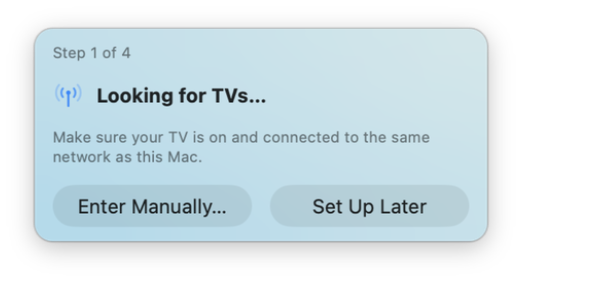
Find your TV
TV Control looks for LG TVs on your network by itself, or you can enter one manually.
-
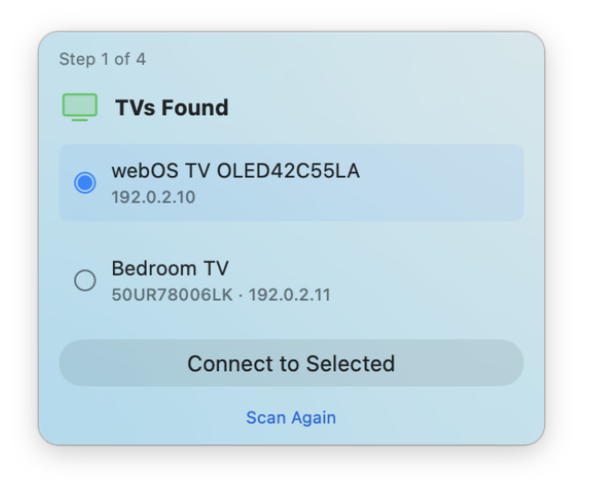
Connect
Choose your TV from the list and connect.
-
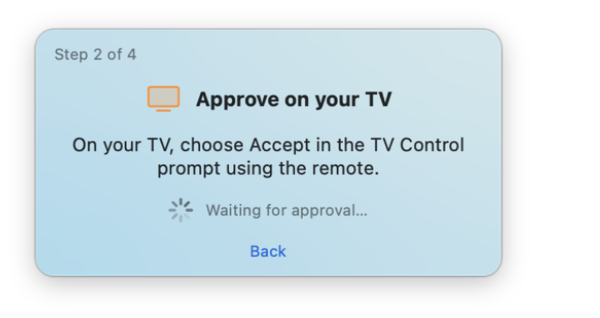
Approve it on the TV
Accept the prompt on your TV with its remote. That’s the last time you’ll need it.


“I use an LG OLED as my main display every day, and got tired of reaching for the remote just to change the volume, switch inputs or turn it off. TV Control started as a utility for myself, and it’s the tool I use daily.”
Alan Bryden, developer
FAQ
Questions & answers
Which TVs are supported?
LG TVs and monitors running webOS, on the same network as your Mac. Other brands aren’t supported.
Does it work over Wi-Fi?
Yes. Your Mac and your TV just need to be on the same network.
Can it turn the TV off when I lock my Mac?
Yes. In Settings › Automation, sleep and wake and lock and unlock each have their own choice: Turn TV off and on, Do nothing, or Custom. The summary underneath says exactly what will happen.
Will it switch the TV off while someone else is watching?
Not with the safeguards on (they are by default on new installs): TV Control only turns the TV off while it’s showing your Mac, and on a laptop it leaves the TV alone when the laptop isn’t connected to it. You’ll find both in Settings › Automation.
Can I stop it for a while?
Yes. Choose Pause in the menu bar, and TV Control stops turning the TV on and off by itself. Power, inputs and volume still work. Choose Resume when you’re done.
Why don’t my volume keys change the TV?
The volume keys follow your Mac’s sound output. They control the TV only while sound is going to it, and your Mac otherwise. The volume slider in the menu always controls the TV. Audio options are in Settings › Audio.
The app can’t find my TV.
Make sure the TV is on and on the same network as your Mac, then scan again in Settings › TV. You can also enter its address yourself there.
Something isn’t working. Where do I start?
Open Settings › Help & Diagnostics. It shows what needs attention, and Check Connection tests the link to your TV without turning it on or off.
Do you collect any data?
No. The app has no analytics, and nothing leaves your Mac unless you choose to send a support report.
Still stuck?
Send a support report from Help & Diagnostics, or email support@tvcontrol.io with your macOS version and TV model.

Your TV behaves like a Mac display.
Set it up once, and let your Mac take it from there.

For LG webOS TVs and monitors on the same network as your Mac.